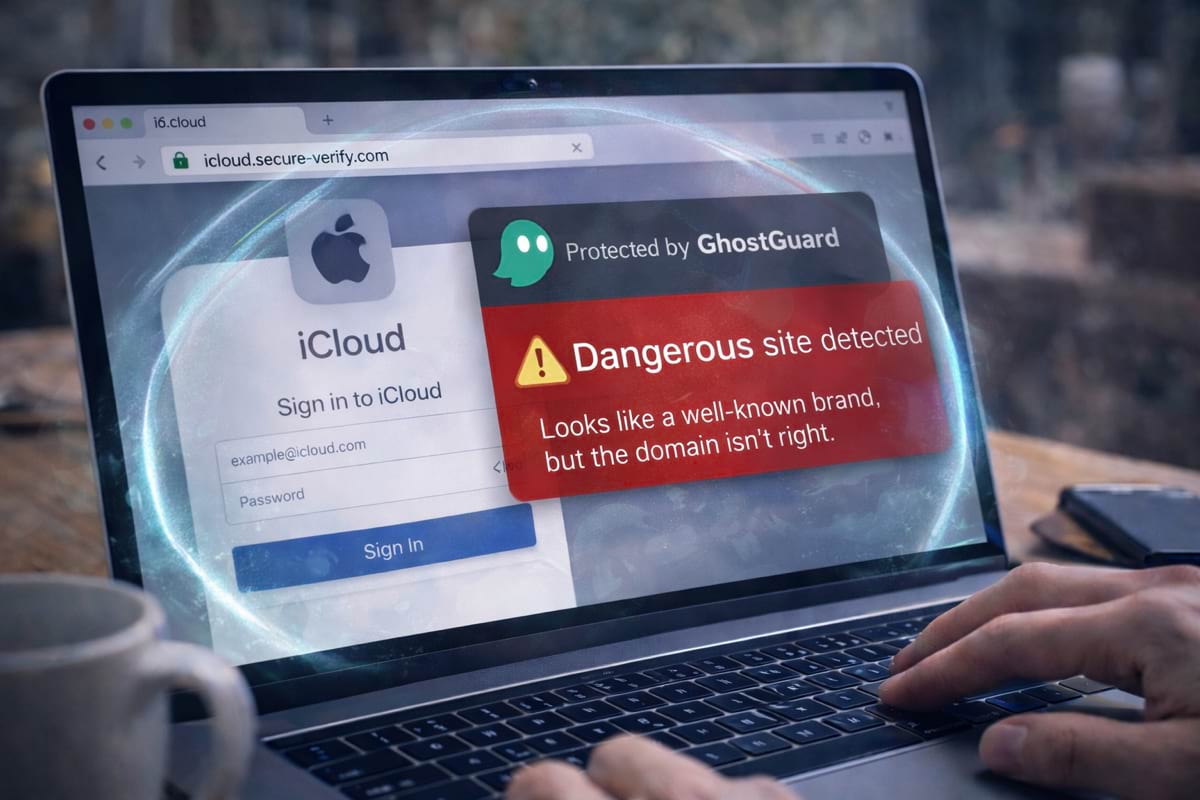
Look-alike domains are one of the simplest tricks on the internet — and one of the most effective. The scam doesn’t need malware or hacking. It just needs you to trust the wrong domain for a few seconds.
This guide explains how domain impersonation works and how to spot it quickly.
- Logos can be copied. The domain is harder to fake.
- Extra words don’t add legitimacy (“secure”, “support”, “verify”).
- Read the domain right-to-left (what’s right before the final TLD matters most).
- If you’re unsure, open the brand via bookmark or typed URL — not the link.
If you want the broader baseline first, read phishing basics. If you’re worried about payment scams, see fake checkouts and payment traps.
What is a look-alike domain?
A look-alike domain is a web address made to resemble a real brand’s domain. Attackers use it to:
- steal passwords on fake login pages
- collect card details on fake checkout pages
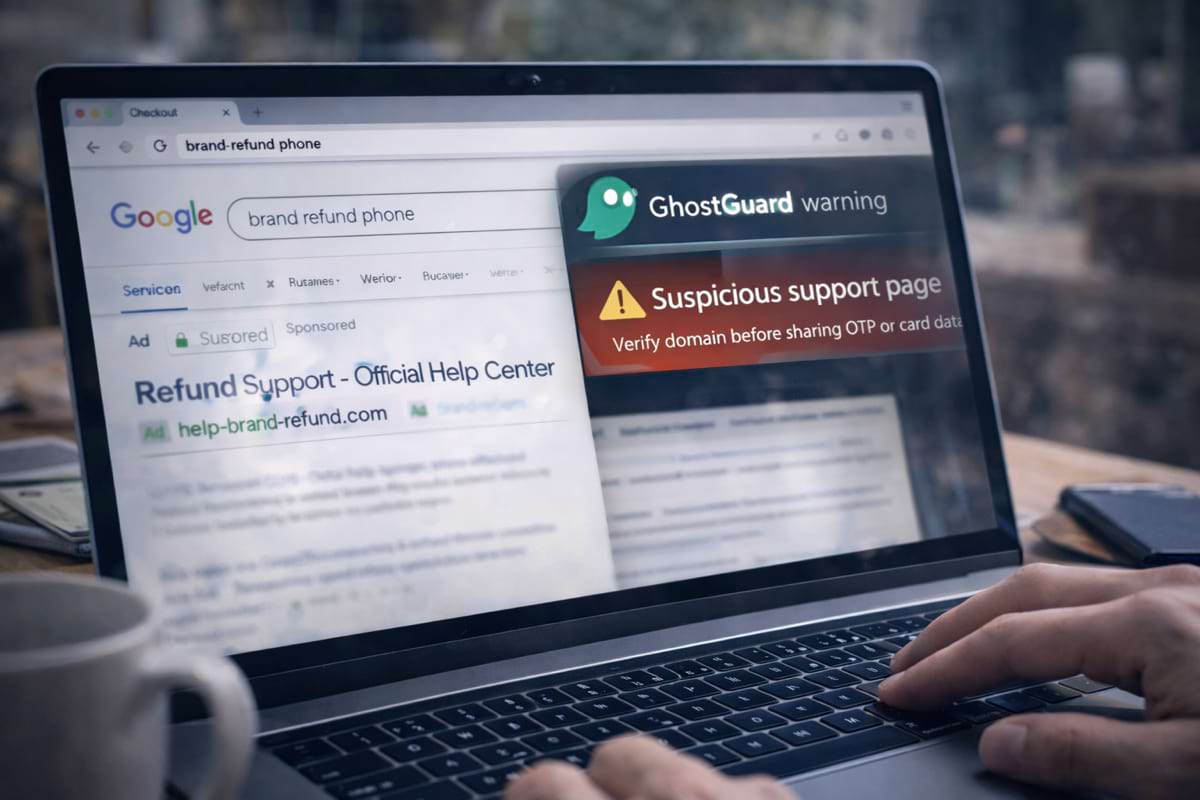
- impersonate customer support (refunds, disputes, chargebacks)
- trick employees into entering credentials (work tools, SSO pages)
You’ll also hear terms like typosquatting, domain spoofing, or brand impersonation. The idea is always the same: make the domain feel familiar.
The patterns that fool people
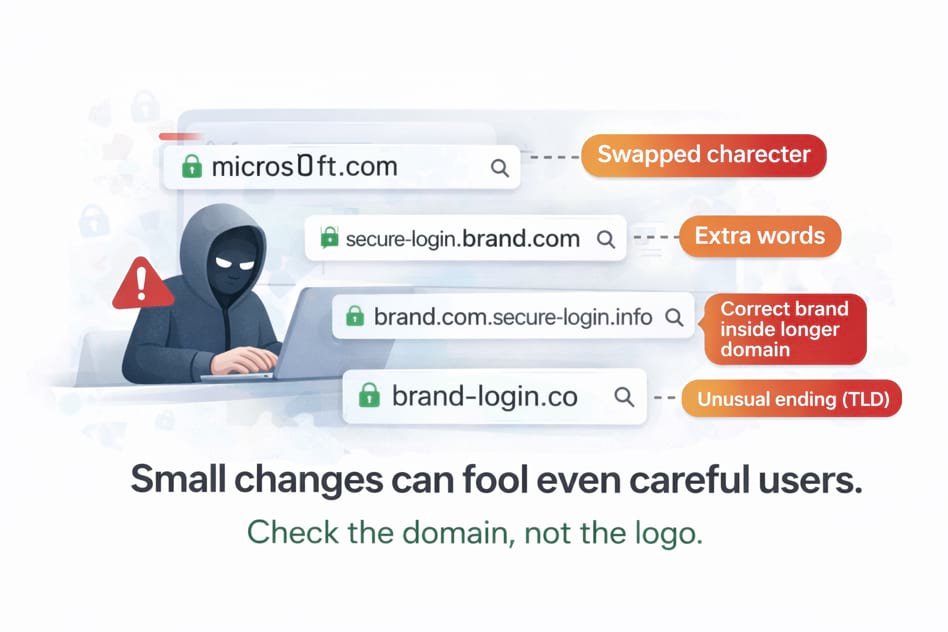
1) A single character swap
micros0ft.com(0 instead of o)paypaI.com(I instead of l)
2) Extra words that sound official
secure-login-brand.combrand-support-center.com
Extra words do not add legitimacy. Brands rarely need them.
3) “Correct brand name” inside a longer domain
brand.com.account-security.examplelogin.brand.com.example
The real domain is the part right before the final TLD (e.g. .com, .net). Everything before that can be misleading.
4) Different domain ending (TLD)
.coinstead of.com- country endings you didn’t expect
- unusual endings
.top,.xyz,.icu
Not all unusual TLDs are malicious, but they’re common in scams because they’re cheap and easy to rotate.
A simple way to read domains correctly
If you’re not sure which part is the “real domain”, use this rule:
The main domain is usually the last two parts:
example.com
Examples:
accounts.google.com→ domain:google.com(subdomainaccounts)google.com.security-check.example→ domain:example(not Google)support.apple.com→ domain:apple.com(subdomainsupport)
If a link looks suspicious, don’t keep inspecting the same page. Open the official brand site from a bookmark or typed URL and navigate from there.
Real-world situations where this appears
“Your account needs verification”
A message claims a security issue and pushes you to “verify now”. The domain is close enough that you don’t notice.
“Refund / dispute / delivery”
These topics trigger emotion — people click quickly, especially on mobile.
“Support chat” pages
Fake support pages can ask for “verification” information that leads to identity theft.
What to check in under 30 seconds
- Read the domain slowlyNot the page title. Not the logo. The domain.
- Look for extra words and hyphens“secure”, “verify”, “support”, “help”, “refund” are common bait words.
- Check the ending (TLD)If you expected .com and see .co or something unusual, slow down.
- Prefer safe paths for sensitive actionsUse bookmarks, typed URLs, or the official app — especially for login and payment.
If you already entered a password on a suspicious page
If you typed a password on a page you don’t fully trust, do this immediately:
- Change the password on the real site (via a safe path).
- Enable 2FA if available.
- Check recent sessions/devices and sign out unknown ones.
- If you reused that password anywhere else, change it there too.
Most account takeovers happen fast. If the domain wasn’t exactly right, treat it as a real incident.
What organizations can do (quick wins)
If you’re managing a team, domain impersonation becomes a business risk. Practical steps:
FAQ
What is typosquatting?
Typosquatting is registering domains that look like a real brand with small changes (letters swapped, extra words, different TLD) to trick users into trusting the wrong site.
Are subdomains safe (like accounts.google.com)?
Subdomains can be legitimate. What matters is the main domain (e.g. google.com). Attackers often hide a real brand name inside a longer domain like google.com.security-check.example.
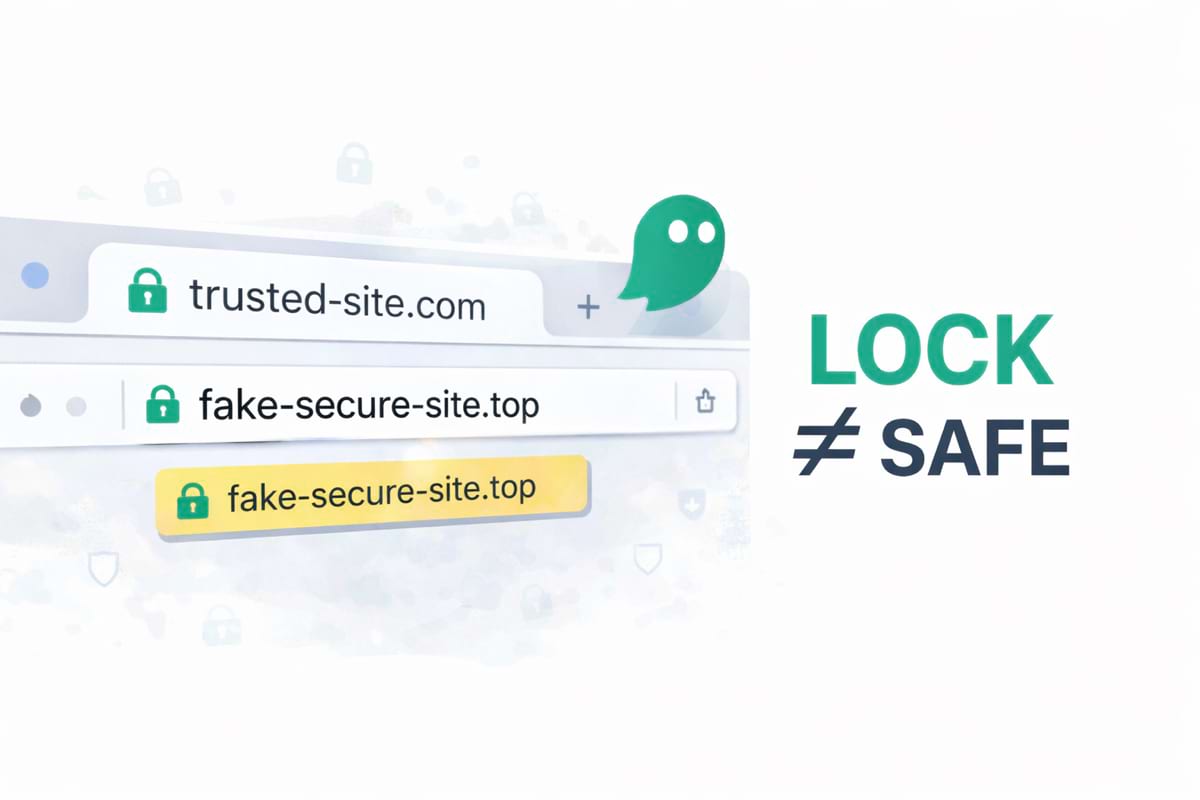
Is HTTPS a guarantee?
No. Scammers can use HTTPS too. A lock icon means the connection is encrypted — not that the website is trustworthy.
What’s the safest way to open a login page?
Use bookmarks, typed URLs, or a password manager’s saved domain — not a link from a message.
Summary
- Look-alike domains are a common phishing technique.
- Attackers rely on small changes (letters, extra words, different endings).
- A consistent habit beats perfect security knowledge: verify the domain before login or payment.